Friday, 20 December 2013

USB 3 and Thunderbolt

This article is about USB 3.0.
USB 3.0 is capable of speeds of up to 5GBPS. This article challenges the speed of USB 3.0 and compares it to other interfaces.
Shaun K. Mitchell


USB 3.0 has become the pinnacle of data transfer rates. It can currently process bandwidth rates of up to 5 Gigabits per second. This can translate to an average transfer of 640MBps, which is ten times faster than USB 2.0 which transfers at 64MBps.
Intel’s Thunderbolt platform (new Firewire) allows transfer rates of up to 10GBps, twice that of USB 3.0.
The comparison lies in the difference of transfer speeds between Thunderbolt and USB 3.0.
A few tests were carried out to determine if Intel’s Thunderbolt technology was in fact faster than a USB 3.0 connection.
Data transfer rates between two different types of hard drives were recorded. Data transfer rates were compared using a regular hard drive and they were also recorded separately using a Solid State hard drive. A regular hard drive works off platters and an actuator arm while a SSD works solely of memory. A solid state drive is harder to break than a regular hard drive but is conversely more expensive.
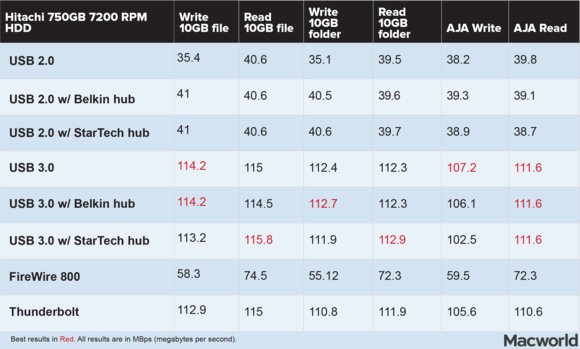
The tests were carried out using a StarTech USB hub and a Belkin USB hub to test data transfer rates and  involved a 2.5 inch Hitachi external hard drive and a MacBook pro. A 10 GB file was transferred to each hard drive through the below noted medium.  (Macworld)

Regular Hard Drive
It was found throughout the testing procedure that all of the tests were in the 112MBps to 115 MBps range. Transfer through the Belkin hub was at 106MBps and transfer through the Startech hub the test score was 102MBps.
When results were recorded using a USB 2.0 hard drive, the results were consistent at 41MBps. This is slower as expected due to the architecture of the interface.
In Firewire 800 the transfer was just about half as fast. The write scores were at 55 and 60MBps and the read scores were marginally higher.
The thunderbolt scores, the test found were consistent with the USB 3 scores which is surprising because the thunderbolt interface is supposed to be faster than USB 3.


SSD
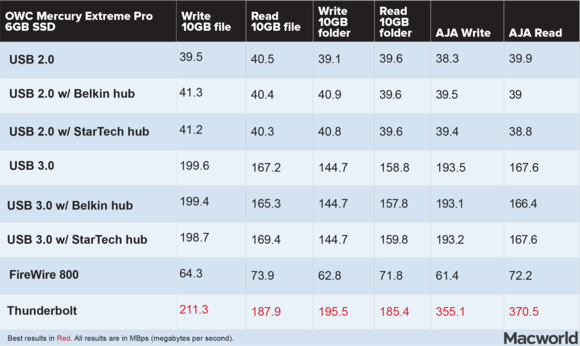
In a separate test, an OWC mercury extreme pro 6G SSD was used. An SSD has different architecture and typically doesn’t take as long to record information to the drive as it would with a regular hard drive. The tests remained the same at 40MBps with USB 2.0 and the bottleneck appeared to be the USB 2.0 drive/interface architecture.
USB 3.0 proved inevitably faster, at 200MBps. (macworld)
USB 3.0 in conclusion is fast, about three times faster on a regular hard drive, and about three to five times faster with a Solid State Hard Drive. It is faster than USB 2.0 but comparable to thunderbolt.
In summary, both USB 3.0 and thunderbolt appear to have upsides and downsides. Both are good in their own ways and are comparable to each other.


Gateway NE77206u laptop

This article contains a review of a Gateway NE72206u laptop. This article surveys its performance, clarifies some new terms, and gives an overall rating.

Shaun K. Mitchell


Title: Gateway NE72206u laptop review


Everyone wants a computer that will satisfy performance hunger, and yet be sold at a good price at the same time. There is one eye catching laptop called the Gateway NE77206u. I am going to go over the review of this laptop, and explain the modern specs relative to its design.
The Gateway NE77206u laptop satisfies performance hunger and a good budget. This is a solid machine for surfing the web, word documents and sharing family photos.
The Laptop sports a 17.3 inch display and 7lb. chassis. While these aren’t great features for portability, meaning that its display is quite wide and you will have trouble dragging it around with you, it has plenty of ports on it and will move from room to room with you just fine.
The display is a 1,600 X 900 resolution, a step down from its more expensive laptop counterparts which are 1,920 X 1,080 pixels.   The laptop isn’t a touch screen (touch screen is a standard feature on nearly every new windows 8 laptop and desktop) and the audio is supposedly of abysmal quality as there is no bass to the speakers.
The track pad works well with windows 8. It supports features such as Pinch and rotate and flip, but uses a scroll strip to scroll up and down the screen. On the right side of the unit is an optical drive that supports dual layer DVD R/RW. It has a single USB 2.0 port and includes a headphone jack and a mic jack. On the left hand side of the laptop are a USB 2.0 port and a USB 3.0 port. A USB 3.0 port can handle speeds of up to 5GBPS.
For video the left hand side of the computer includes one HDMI out port, and one VGA out port.
For Ethernet, it includes a Gigabit Ethernet port, which is found on very few modern models to date. For wireless it supports 802.11N and has a Bluetooth 4 interface.
It has a 500GB hard drive and includes a quad core AMD A6-5200 Accelerated processing unit.
In summary the laptop is good for the price you would pay for it but it is not particularly top of the line. The laptop’s configuration has changed by little, compared to modern trends. It includes a USB 3.0 port which, as earlier mentioned, can support 5GBPS. Its DVD drive can support dual layering technology which is a feature of newer models. It doesn’t have a touch screen, which is not consistent with many new models of laptops out there. For the price though this isn’t an unreasonably priced machine.

This laptop was compared with other models similar to it. Of the models it was compared to the finding was that its battery lasts about five hours; just over one more hour than that of a Dell Inspiron.      

Network Attached Storage Boxes

This article contains an introduction to Network Attached Storage units, or NAS boxes. I am going to go over what a NAS box is, and what it is used for.


Shaun K. Mitchell


This topic is going to be about NAS Boxes (Network Attached Storage) boxes. NAS boxes external storage configuration solutions that plug into your home or office router and store data on a network. They are used to store data from single computer settings with little data to multiple computer settings with large amounts of information.
A NAS Box serves four functions: it can serve as a wireless access point, and it can serve as a central station for backing up files. In addition, a NAS box can link mobile devices and it can even support video surveillance data.
NAS Boxes generally don’t need drivers to operate and can operate on a windows network, Mac network, Linux network, or combination of the latter. They are pretty driver-agnostic meaning that they don’t require a lot of driver installs.
A NAS Box typically has a USB 3.0 port on the front, and depending on the model, can include different types of ports such as eSATA, or Ethernet depending on what a NAS box can be used for.
You know the old saying “you get what you pay for” and that applies here. The faster NAS boxes generally have more processing power, and have improved performance characteristics. The higher end models can typically read data at rates at about 110MBps and write at about the same wavelength.
The internal drives themselves generally run on a SATA configuration and support RAIDS. That is standard on most NAS boxes. If you need to back up lots and lots of data on one PC, generally the lower end models will do the trick for you. However on the other end of the scale if you have three or four computers in your office and need to back them all up in a timely manner, then the latter may be a better choice.
Most of the standard NAS box technology supports new stuff like DLNA-certified media serving, iTunes serving, website and go all the way to remote access as well. Newer features of NAS boxes involve backup to online storage, and access to files from mobile phones.
NAS boxes have neat software interfaces too. The newer interfaces are much more organized than the older interfaces.
In summary, NAS boxes are SATA raid capable hard drives capable of low to medium grade network and cell phone data storage. They are capable of hosting webservers and streaming iTunes music. NAS boxes are recommended for and can be used by the person with the single computer network to the person who runs a multiple computer network. There are currently two types of NAS boxes; those with two bays (cheaper) and those with three bays (more expensive). NAS boxes are new ways to store data.   
Currently you can only buy hard drives that can hold up to 2TB of storage. That was until Mid-June when Seagate introduced Drives fit for network installations. Called the NAS hard drives, they can hold up to a whopping 4TB of storage and are designed for networks that need to store a large “volume” of data. The NAS HDD from Seagate can offer data sizes up to and including four TB. Currently such a product was unavailable in the market.  


Sunday, 26 May 2013

Windows 7 Features


Additions to Windows 7

May 24, 2013

Windows 7 is an Operating System that was published and released by Microsoft on July 22, 2009. It was made available for sale to the General public on October 22, 2009. This summary highlights new additions to Windows 7.

It all begins by starting your computer and watching the operating system load. You should see two things when your computer boots into Windows 7: You should see a circular shaped Windows logo at the centre of your screen and below that a small status bar that displays your start-up progress. If your operating system loads correctly, you should see a beautiful mirage of icons on your screen after your operating system loads. This mirage is your desktop. When your computer starts up, you should be able to find that there are several technical components to customizing Windows; these include the Windows Aero interface, customizing your computer with Windows themes and gadgets.

Windows Aero

Advanced versions of Windows 7 (Home Premium, Business, Enterprise and Ultimate editions) use a 3-D interface called the Aero Interface. Why Aero? Aero is a backonym for Authentic, Energetic, Reflective, and Open.

There are four different functions of Windows Aero: Aero Peek, Aero Shake, Aero Snap and Touch UI enhancements.

Aero Peek: When you hover over a window with your mouse, Aero Peek “peeks” at the window you are looking at and shows a picture in picture type of view.

Aero Shake: If you shake your window (clicking and dragging) it minimizes all your Windows so you can see your desktop.

Aero Snap: If you click drag and hold your window to the left or right side of the screen, it will “snap” the window in place on that side of the screen.

Touch User Interface Enhancements: The text in the title bar buttons is slightly bigger.

Windows Themes

Newer versions of Windows (XP, 7, Vista and 8) offer many customization features. Of these are Windows Themes. A theme is a way that you can personalize your copy of Windows to however you want it. This includes means to download your themes from Microsoft.com.

One feature of Windows themes is Windows Slideshow. Windows Slideshow allows you to display multiple themes at once. Basically if you set your theme to “Slideshow” it will change your desktop background in a designated amount of time.

Gadgets

Advanced versions of Windows allow you to be able to implement gadgets or widgets to the side of your Windows desktop. These can include applets that give you the time of day, weather, anything that suits your desire. Gadgets give you more flexibility of control over what goes on your desktop and allow for better user friendliness.

To add a gadget to your Windows 7 sidebar, you would need to click the plus arrow at the top of the sidebar. That should show you what gadgets you currently have on your system. Once inside you should be able to add the appropriate gadgets and they will be on your desktop.

This is a brief overview of some of the many things that you can do with your Windows 7 interface. Stay tuned for more.

Shaun Mitchell